ace archives and unace-nonfree

well you’ve gotta love ace archives, there’s actually still people using it ;)
i received one today and wenn trying to unace in my linux i get (with t as parameter to verify the archive):
munzli@freddy:~$ unace t archive.ace
UNACE v1.2 public version

Processing archive: archive.ace

Authenticity Verification:
created on 31.3.2002 by Laudahn

thefirstfile.txt
 Analyzing
File compressed with unknown method. Decompression not possible.

Error occurred

well after searching around i found out that there is a nonfree version of unace. how handy. it’s located in the multiverse repository of gutsy and can be installed with:
sudo apt-get install unace-nonfree

now you’ve got the unace version that will decompress my archive and another version named “unace-free”. i’m not sure why they named it the other way around in the repos, but it works…

iconv script for converting character encodings

well the whole character encoding problems in the german language with utf-8 and iso-8859-1 is pretty tedious. a fine little program called iconv does the whole encoding changes pretty nicely but… (well there had to be a but huh?) you can’t switch encodings with input and output being the same file.
so moving/deleting/renaming makes it a little painfull.

i wrote a little script that does this for me, it’s really simple but simplifies everything.

#!/bin/bash
#
# Convert arguments handle different encodings
iconv -f $1 -t $2 "$3" -o "$3-new"
# Create backup
mv "$3" "$3~"
mv "$3-new" "$3"

i called it “econv” and instead of:
iconv -f iso-8859-1 -t utf-8 myfile.txt -o myfile_new.txt

then deleting the old file and renaming the new one, i just type:
econv iso-8859-1 utf-8 myfile.txt

which does the trick and even creates a “myfile.txt~” backup of the original.

put the script in your /usr/local/bin or whatever you prefer and you can use it globally.

using pictures for picasa and flickr that include geotag exif data

just received a picture that has geotag information in it. the only problem is: it seems that geotag isn’t equal geotag. the picture has GPSVersionID, GPSLongitudeRef and GPSLongitude tag in the exif data like it’s supposed to.
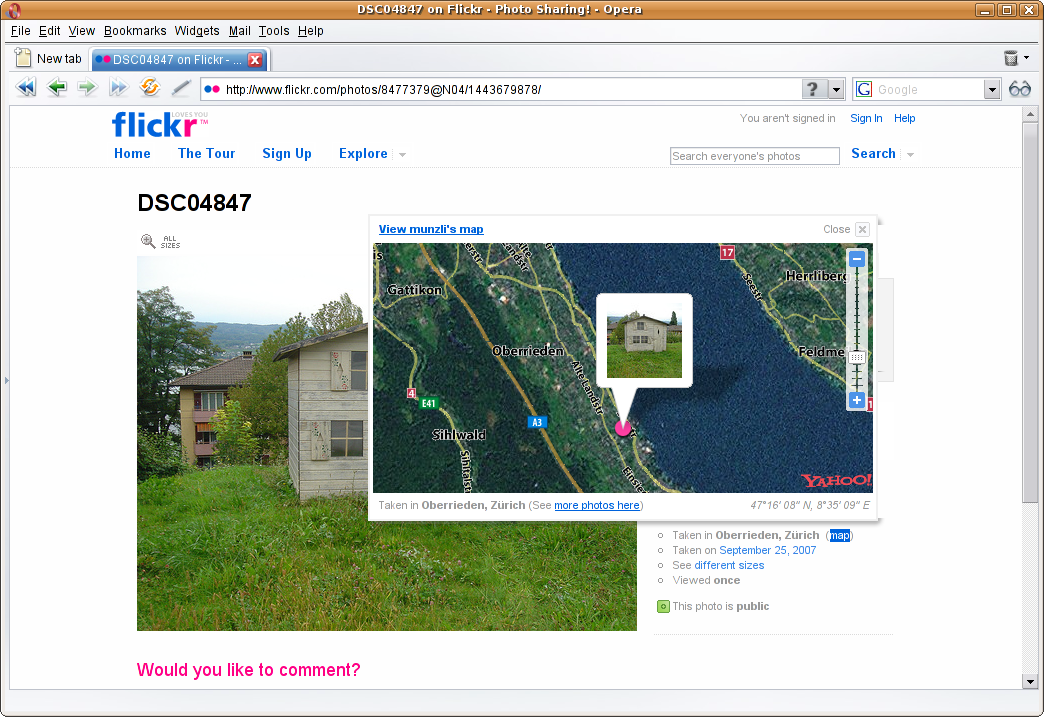
uploading this to flickr worked perfectly, it displays the town name and location where it was taken. pretty cool if you ask me. here’s an example:
geotaged flickr image

well now to the big problem, google picasa doesn’t understand this kind of geotag… how to fix this? well i found out that exiftool knows all kinds of cool exif data and can also rewrite them. what we need to do is change the GPSVersionID from “2.2.0.0″ to “0.0.2.2″. GPSVersionID 2.2.0.0 is the default and basically means that it’s version 2.2, it seems that picasa doesn’t think so and wants it to be 0.0.2.2 (which seems to be more logical for a 2.2 version but i don’t really know who’s right here).

well what you can do is install exiftool, under debian/ubuntu that would mean:
sudo apt-get install libimage-exiftool-perl and for all you windows users you’ll have to download the zip file from the site mentioned above.

now all you need to do is rewrite the exif tag, to do this for a whole folder you’d use:
exiftool -GPSVersionID=0.0.2.2 -overwrite_original imagepath/*.jpg

then exiftool tells you how many images have been updated.

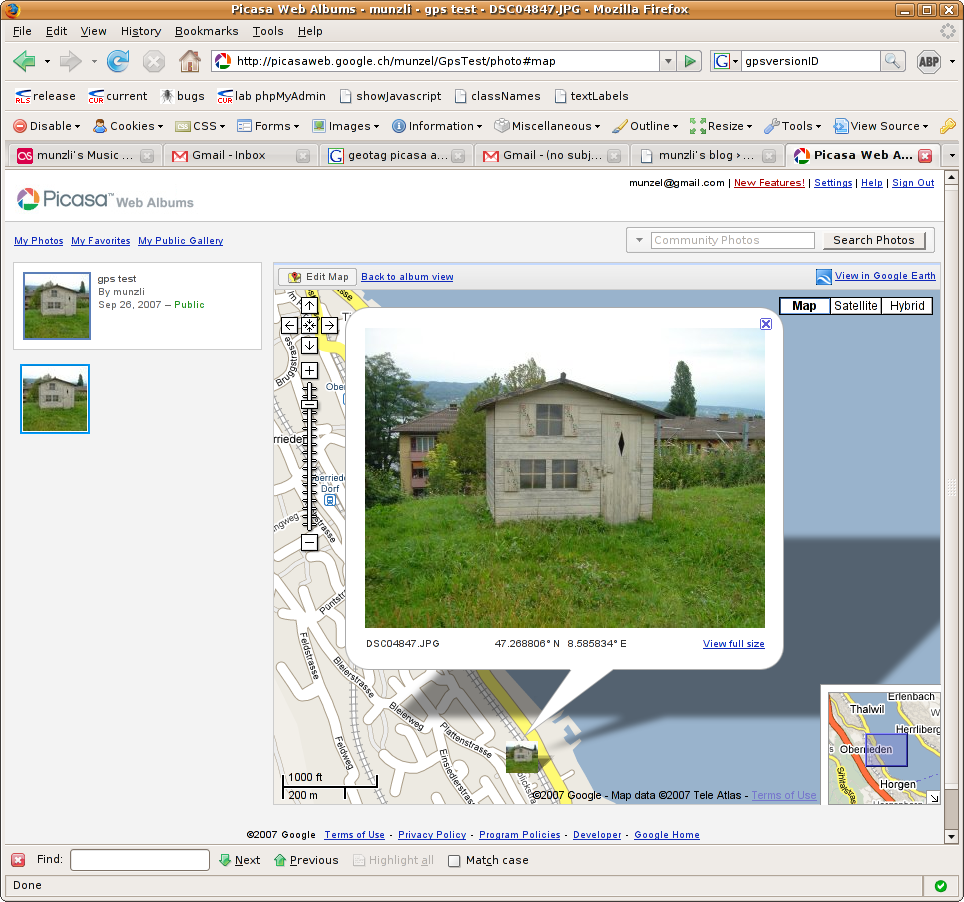
now let’s login to picasa and see what happens… after i uploaded the picture i went into the album and the picture is nicely placed on the map:
geotaged picasa image

no need to pick out the location or anything!

here’s my link to the picasa test and the flickr test.

only thing missing now is a GPS system :)

[update] for all you german users, if google isn’t set to english you won’t be able to see the map stuff on picasa because it’s english only atm.

[update2] i also noticed that there’s no need to change the exif GPSVersionID anymore for picasa to place the photo… nice…

resize a directory full of images using imagemagick

people wo have image galleries on the net know that the images that come from your digital camera are usually to big. even gallery scripts that do resize the images might fall into a timeout when uploading alot of images. i used to batch resize my images with a GIMP script, but why? i don’t know. using imagemagick is ten times simpler!

mogrify -resize 800x600 "*" *.jpg

easiest possible way to go…
and with the option -quality you can also set the quality… check out the mogrify man page for more information.

wcmsblog for phpwcms 1.3.3

well i’ve seen lot’s of people having problems with this and since i’m setting up a new phpwcms 1.3.3 and need blog support i’ll describe how i’m getting wcmsblog to run.

well after downloading from the site, looked at the contents of the archive. this includes:
include/
phpwcms_template/
scripts/
blogrss.php

the include directory and blogrss.php file can be moved into your phpwcms without any worries. notice that the new default directory for the templates does not have the “phpwcms_” prefix anymore! so move the containing files into the template folder of phpwcms.
now, i don’t like the idea of having even more javascripts laying around than there already are, but for making this easy, just copy the scripts folder with moo.fx and prototype over too. (i might change this since prototype and libraries similar to moo.fx are already laying around in phpwcms 1.3.3)

well on to the next step, now open phpwcms.php and at line 96 look for
case "modules": //modules

at line 105-106 the part for the graphical text mod is done, right below this add
$subnav .= subnavtext("Blogs", "phpwcms.php?do=modules&p=6", $p, "6", 0);
make sure you don’t have another module using the ID 6 or else change it.

and around line 403 ( since you’ve added a line or two it could be around 405 ;) ) after the graphical text mod part (ca. 408-410) add
if ($p == 6) { // Blog MOD
include_once "./include/inc_module/mod_blogs/main.inc.php";
}

NOTE: that the ID has to be the same as above if you changed it.

now if you log into phpwcms under modules you have a working version of the wcmsblog backend, hopefully!
the database is created the first time you enter the “Blogs” module.

if you are not using the GT mod, make sure you open the file blog.module.php in template/inc_script/frontend_render and look for
$s = preg_replace('/\{GT:(.+?)\}(.*?)\{\/GT\}/ei', "get_gt_by_style(\$gt, \"\$1\", \"\$2\")", $s); this should be around line 215.

here replace the line with an “if” to check if the gt mod classes exist, like this
if(class_exists('get_gt_by_style')) {
$s = preg_replace('/\{GT:(.+?)\}(.*?)\{\/GT\}/ei', "get_gt_by_style(\$gt, \"\$1\", \"\$2\")", $s);
}

if your GT mod is enabled and in use (added fonts and writable gt folder for images) you shouldn’t need to do this, but it’s needed if you don’t use the GT mod, just enabling in the config file doesn’t work!

now add the replacement tag to an article {BLOG:yourblogname} and it should show up in the frontend!

i’ll be showing you how to get the captcha working soon… if you have question feel free to ask!
enabling desktop effects ubuntu 7.04 nvidia

well since ubuntu has the new little desktop-effects menu in system -> preferences i wanted to try it, but i kept getting this:
munzli@freddy:~$ /usr/bin/desktop-effects
modinfo: could not open /lib/modules/2.6.20-15-386/volatile/nvidia_legacy.ko: No such file or directory
modinfo: could not open /lib/modules/2.6.20-15-386/volatile/nvidia.ko: No such file or directory
nvidia hardware not available
Segmentation fault (core dumped)

my system has been upgraded from previous releases and already had beryl and compiz running before upgrading to feisty and has tons of dead entries and packages. the solution was actually quite simple, but here’s all the steps i did.

first i removed the nvidia restricted modules (as you can see i still had others from previous kernels so i removed them as well) and nvidia kernel drivers (this step is probably not necessary but i did it anyway to make sure)
sudo apt-get remove --purge nvidia-kernel-common linux-restricted-modules-2.6.15-23-386 linux-restricted-modules-2.6.17-10-386 linux-restricted-modules-2.6.17-11-386 linux-restricted-modules-2.6.20-15-386

then i reinstalled the packages (you can take the generic package but i used the 686 package since i have a P4 here at the office)
sudo apt-get install nvidia-glx-new linux-restricted-modules-686

make sure you have the nvidia specific stuff in your xorg.conf, if you don’t, the easiest thing to do is run:
sudo nvidia-xconfig --composite
sudo nvidia-xconfig --render-accel
sudo nvidia-xconfig --allow-glx-with-composite
sudo nvidia-xconfig --add-argb-glx-visuals

restart X and you should see the nvidia module, easiest check is running System -> Administration -> Restricted Drivers Manager. it should look like this (you only need the nvidia driver in there):
Restricted Drivers Manager

well i didn’t have it loaded at first and noticed that it was still missing the /lib/modules/2.6.20-15-386/volatile/nvidia.ko file, so in that directory i noticed the nvidia_new.ko so i just made a symbolic link:
ln -s nvidia_new.ko nvidia.ko

after that it still wasn’t working! well here’s the final and real step that made it work and you might only have to do this!

check the gconf-editor and make sure that no dead plugins are loaded, mine looks like this now:
active_plugins
mine still had “animations” and “3d” in there, and after removing animations it worked!

a nice way to waste some time ;)

if your cube doesn’t rotate, then also make sure that the key /apps/compiz/general/screen0/options/hsize is set to 4 or more. for others plugin go check the compiz site.

final shot

google’s personalized startpage (iGoogle)

today i noticed that google changed it’s personalized startpage to the name iGoogle (it’s probably been like this for a while, i just didn’t notice). it’s themeable now, here’s a screen shot:

iGoogle

the background image changes every two hours ;) for example, the teahouse theme at 10am and then at noon

go check it out! there’s a bunch of new content that can be added and you can now even create new tabs.

ubuntu dist-upgrade with an iso image

well since ubuntu feisty fawn 7.04 is out, i thought i’d go for the distribution upgrade… so i downloaded the iso.

upgrading through the online repositories usually is pretty time consuming so i wanted to upgrade through the iso without burning a cd, who needs cds anyways ;)

the only way i got this going was to mount the iso into a directory (in my case: /media/ubuntu)
sudo mount -o loop -t iso9660 /path/to/my/iso/ubuntu-7.04-desktop-i386.iso /media/ubuntu

then edit the sources.list in /etc/apt and replace “edgy” with “feisty” and add this line to the top
deb file:/media/ubuntu/ubuntu feisty main restricted

not very nice but the cdromupgrade is missing in feisty!

now do a:
sudo apt-get clean
sudo apt-get update
sudo apt-get dist-upgrade
sudo apt-get -f install # optional
sudo dpkg --configure -a

HINT: “sudo apt-get -f install” is only needed if you get errors during the dist-upgrade.

for some reason i also needed to uncomment the normal “main/restricted” package source because it still wanted to download every package.
# deb http://archive.ubuntu.com/ubuntu feisty main restricted

if anybody has easier ways, please tell me!